Stone Profits Help Manual
  • Home
  • Intro
  • Presales
  • Purchases
  • Inventory
  • Sales
  • Accounting
    • Receivables
    • Payables
    • Banking
    • General Ledger
  • Reports
  • Schedule
  • Contact Us
  • Home
  • Intro
  • Presales
  • Purchases
  • Inventory
  • Sales
  • Accounting
    • Receivables
    • Payables
    • Banking
    • General Ledger
  • Reports
  • Schedule
  • Contact Us
Stone Profits Help Manual

PRINTING VISITS (SELECTION SHEETS)

 
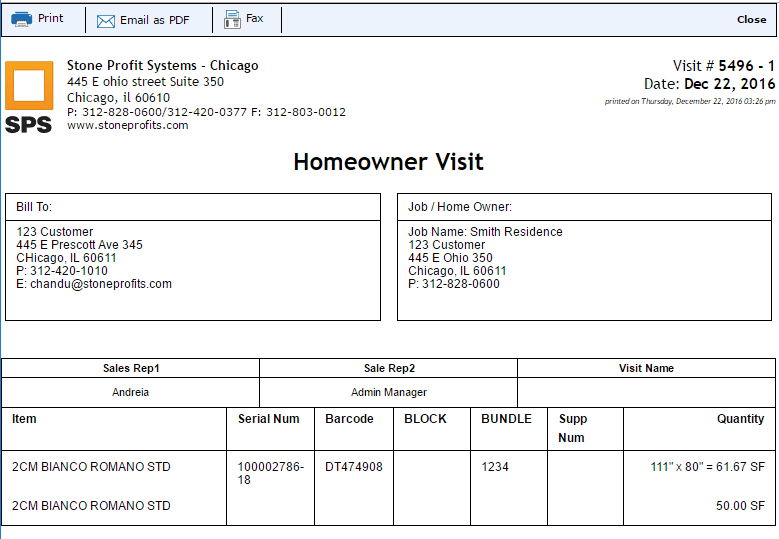
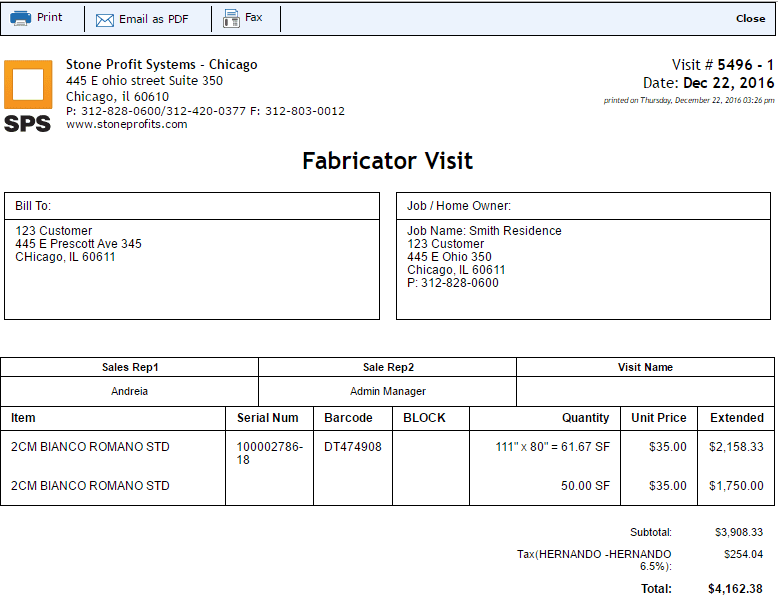
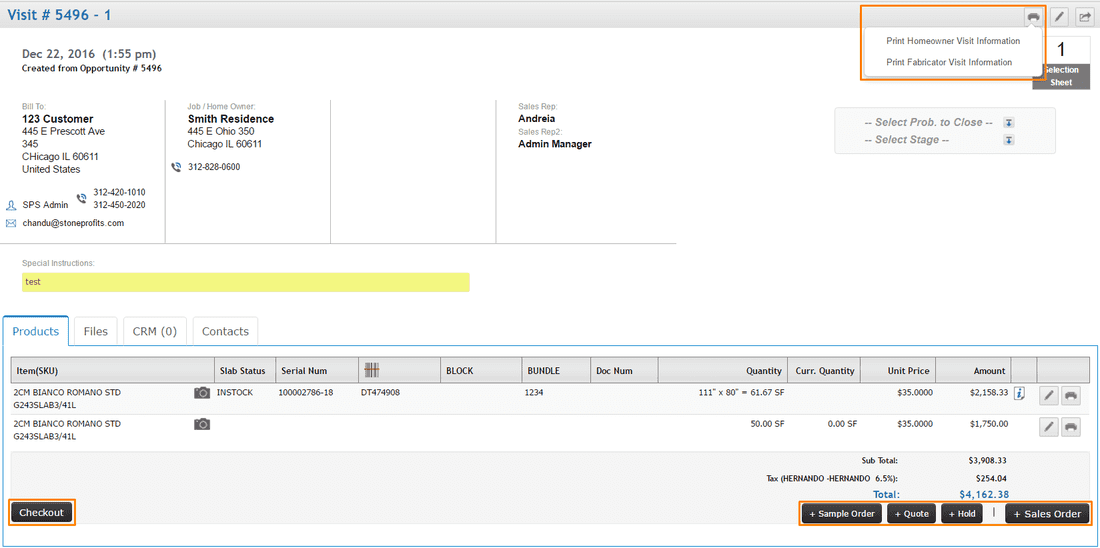
There are two printouts available on Visits by default: one for the Homeowner (no pricing), one for the Fabricator (shows pricing). Simply click the Printer Icon on the top-right of the page and choose from the dropdown.
Picture


Homeowner Printout
Picture


Fabricator Printout
Picture

Other notable features of the Visit detail page:

​Checkout: The checkout button will show this customer as already being helped in your list of Visits, and also automatically send an email thanking them for visiting. 

+Sample Order: Create a sample order in your system to this customer for one of the materials added to the Visit


+Quote: The customer info, product info, and product prices will carry over to a quote for this customer. Quotes will not list specific inventory items but offer additional features which are not found on visit pages. 

+Hold: You can add a Hold if the customer requests for you to reserve inventory for them. If you selected specific inventory items on the Visit, those items will be pre-selected for the Hold when you add it from the Visit page. 

+Sales Order: If the customer decides to move forward with purchasing from you, clicking this button from the hold will retain their contact information and also include any specific inventory items you selected on the Visit. ​
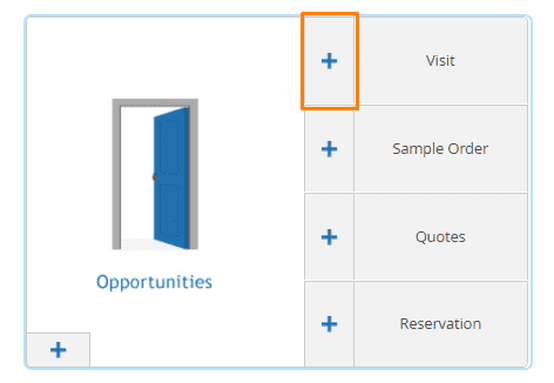
CREATING A NEW VISIT (SELECTION SHEET)

 
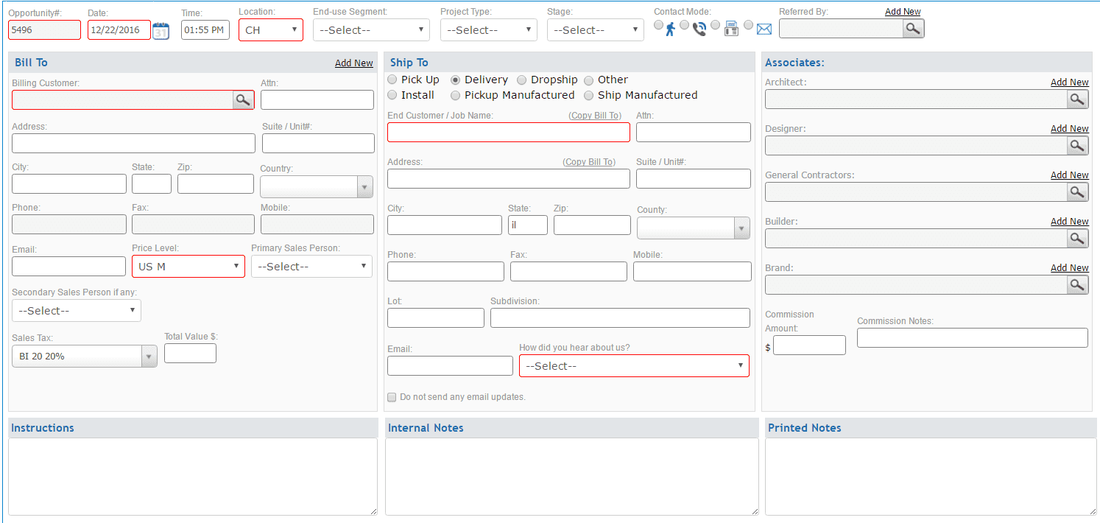
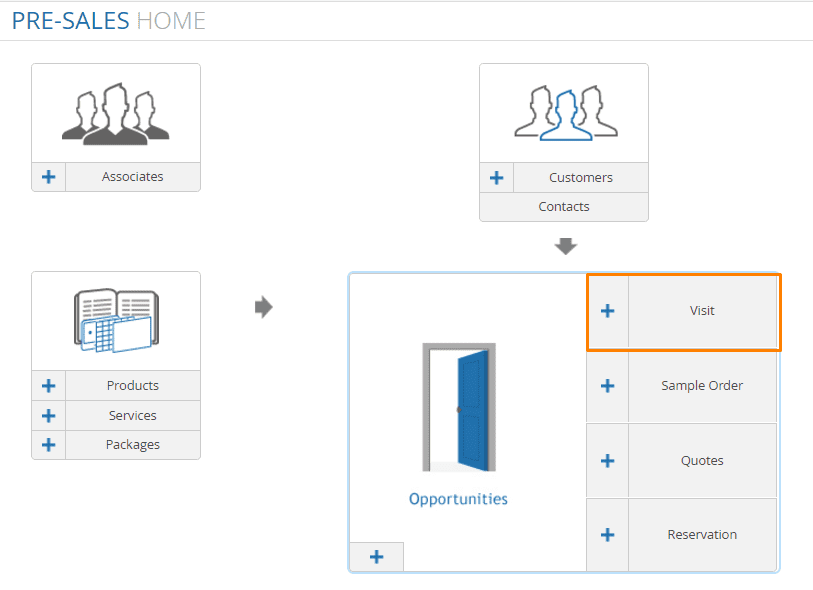
1.) From the Pre-Sales Home, click the plus sign near the button for Visits. ​
Picture

2.) Enter the customer header information for the customer you are dealing with. The "Add New" link in the "Bill To" section allows for creation of a new customer account. 

For Distributors: the Fabrication company is typically listed on the "Bill To" side and the referred Homeowner's info is entered in the "Ship To" section in the middle of this page. 
For Fabricators: The same applies as above if you are dealing with another company. If the homeowner is going to be the billable party, enter their information on the left side. Or, use a generic customer and enter the homeowner information in the middle.
​​
Picture
Click "Add Opportunity + Visit" when you're finished filling in all applicable information. 


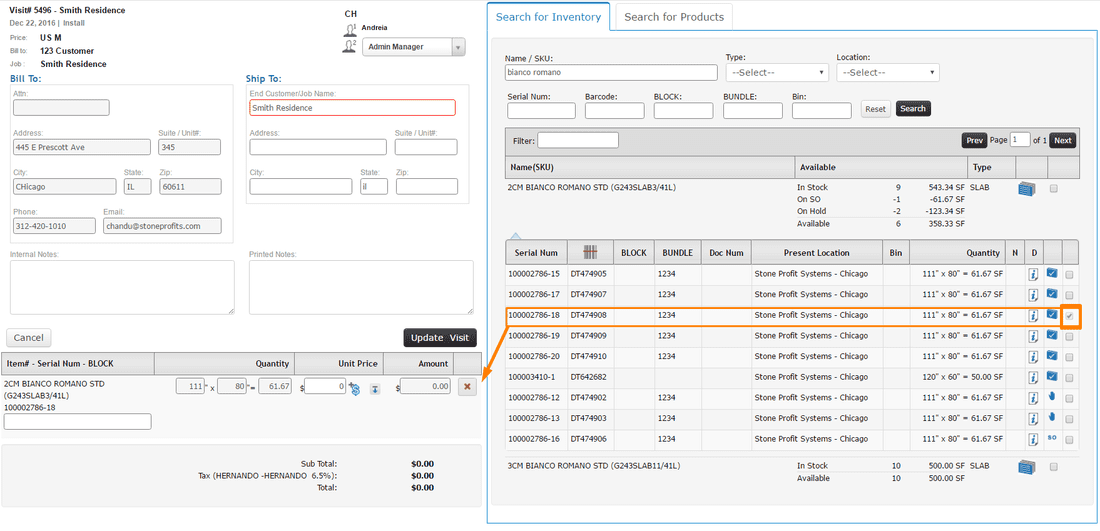
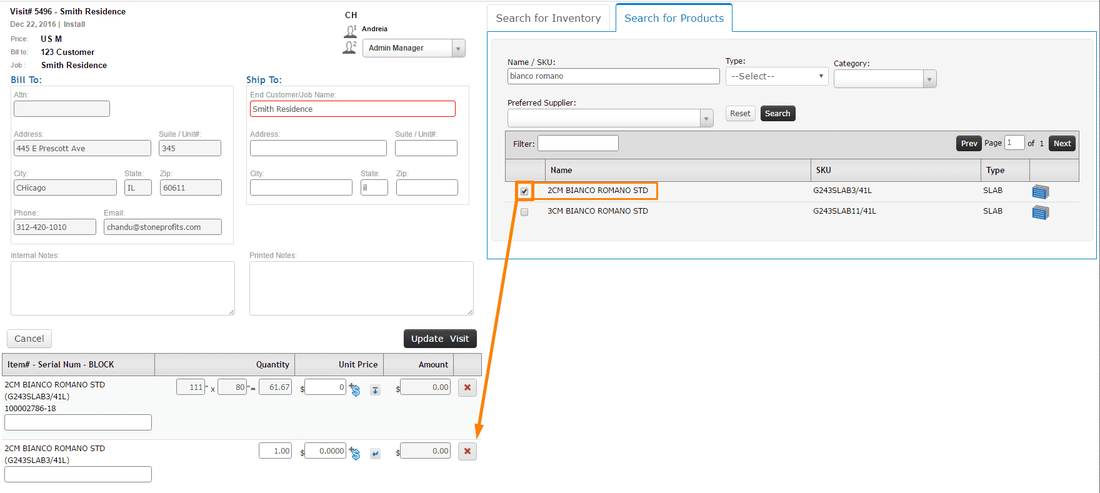
3.) On this page, you have the option to add Product names or specific Inventory items which this customer is interested in buying.
Picture
​Reminder: Products are not the same as inventory in SPS. The product search will only attach the name of something you sell (i.e. "Absolute Black 3cm"), whereas the inventory search will allow you to attach specific items you have in stock (i.e. "Absolute Black 3cm, Slab 2132-12, 117"x56") ​​
INVENTORY SELECTION TO VISIT
Picture


PRODUCT SELECTION TO VISIT
Picture


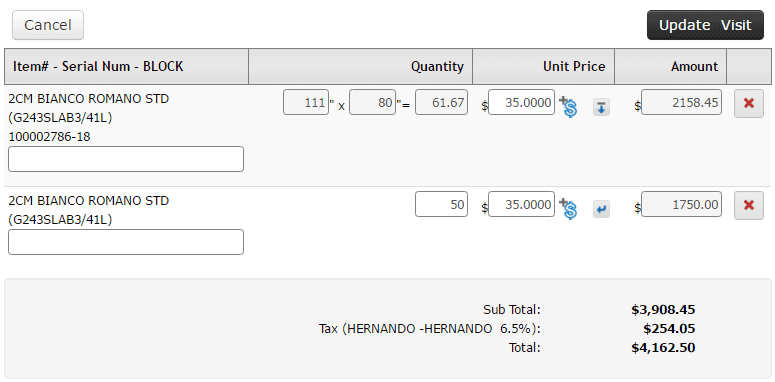
You have the option to add pricing into selected products or inventory on the left side of this screen. For products, you can manually enter a number in the quantity box to be multiplied by the unit price. For inventory, only the unit price is editable and will be multiplied by the current size of the specific item selected. ​
Picture

When you're finished adding items to the Visit, click "Update Visit" to be taken to the Visit Detail Page for printing/emailing.

CLICK HERE FOR ARTICLE ON PRINTING/EMAILING SELECTION SHEETS

VISITS

 
Picture

Visits (A.K.A. Walk-ins / Selection Sheets) are used to track customer engagements at your showroom / warehouse. When a customer walks into look at your inventory, you can add a Visit to your system to retain the customer's general contact information, as well as the customer's interest in specific inventory items you have in stock. ​
    Related Articles:
    • Visits
    • Creating a New Visit (Selection Sheet)
    • Printing Visits (Selection Sheets)
    • Opportunities